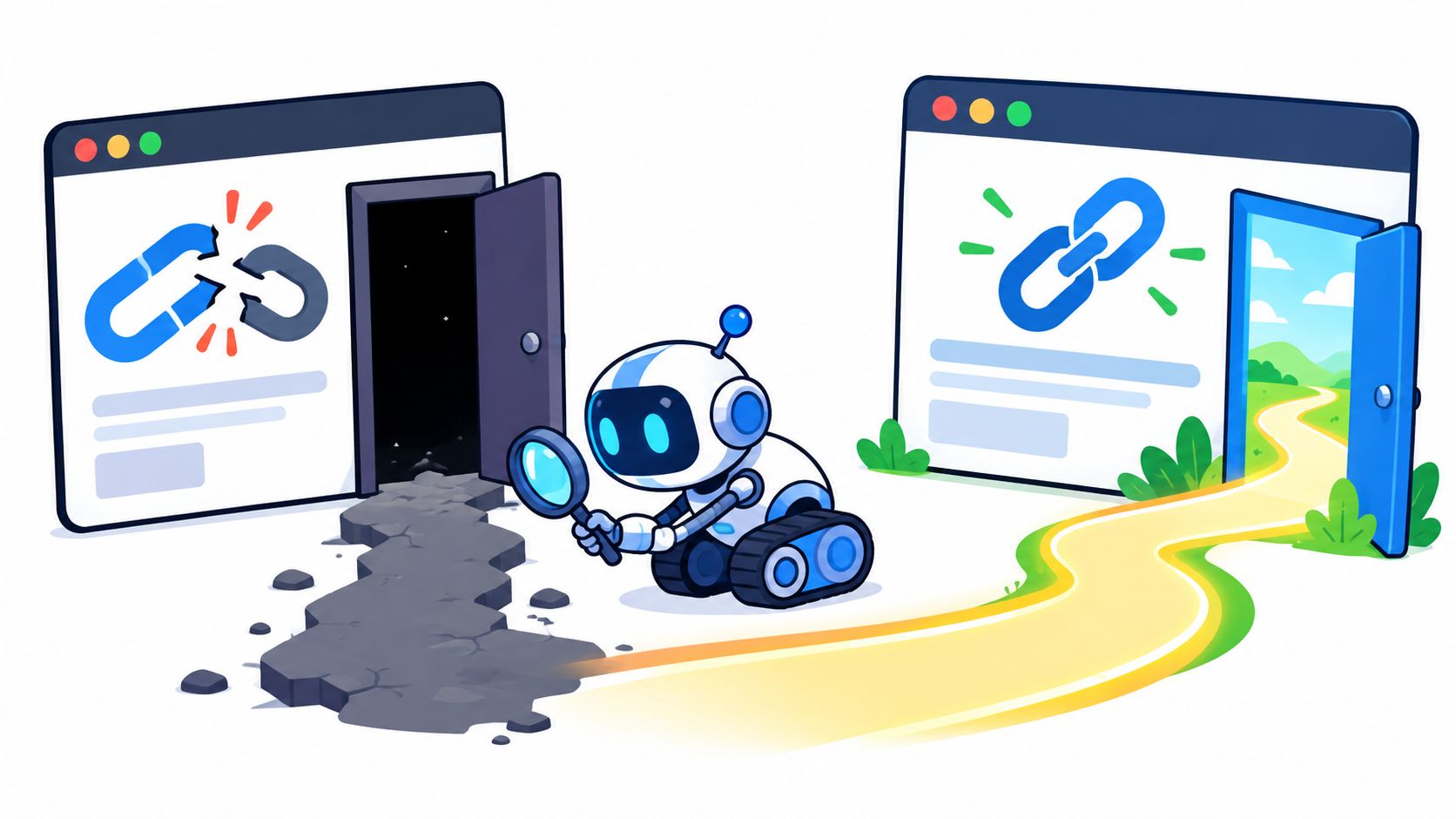
A visitor taps your pricing link after reading a promising post. The page starts to load, then shows an error. They try again, return to the menu, and leave without seeing the offer. Maybe they were ready to buy. Maybe they were looking for a useful answer. Either way, the link made a promise the destination couldn't keep.
A dead link is like a door with a sign still hanging on it, but no room behind it. The practical trouble reaches beyond that doorway: evergreen articles, documentation, and sales funnels can remain online long after the destinations they rely on have moved or disappeared.
By the end, you'll be able to recognize several kinds of broken links, tell a missing page from a misleading response, weigh the impact without panicking about SEO, and pick a repair routine that fits your site. We'll move from the basic diagnosis to the causes, real-world failure examples, consequences, and a nightly fix.

The visible error page is only one costume a dead link can wear.
Table of Contents
- A Broken Link Example You Can Picture
- What Makes a Link Truly Broken
- Why Links Rot Across the Open Web
- Broken Link Examples Beyond a Plain 404
- How Broken Links Hurt SEO and Journeys
- How to Find and Repair Broken Links
- Your Next Spell for Healthier Links
A Broken Link Example You Can Picture
Your webinar invitation is ready to send. During a final phone check, you tap “Save your seat.” A new tab opens, but the registration form never appears. On your laptop, the same button worked.
Keep the invitation in drafts. Test the button in another mobile browser and copy its destination address. Does that address open the form directly? If so, investigate the button's behavior. If it also fails, investigate the destination. A blank tab is a symptom, not a diagnosis.
That same check, following a promise through to a completed task, exposes failures across a founder's site:
- The missing download: “Download the workbook” opens an error page instead of a PDF. Follow the link in a private browser window, then open the downloaded file. A button that works while you're signed in may still fail for subscribers.
- The screen-reader dead end: A linked image has no accessible name, so a screen-reader user cannot tell that it leads to the booking form. Tab to it and listen with a screen reader. The destination may work; the link still needs a name that explains its purpose.
- The login loop: “View your invoice” sends a customer to sign in, then drops them on the dashboard. Test while signed out and check whether signing in returns you to the invoice. Requiring authentication is expected; losing the destination is the failure.
- The checkout detour: “Buy this course” opens an empty cart. Try it with a fresh session and confirm that the intended course reaches checkout before entering payment details.
These failures need different repairs. Replacing a missing PDF will not fix a login loop, and a working destination cannot supply an unnamed link's missing label.
Keep a small repair queue: starting page, link text, device or access method, expected result, and actual result. Each night, scan for failed destinations and review new reports. After a repair, repeat the user's test. The spell is finished when the task works.
What Makes a Link Truly Broken
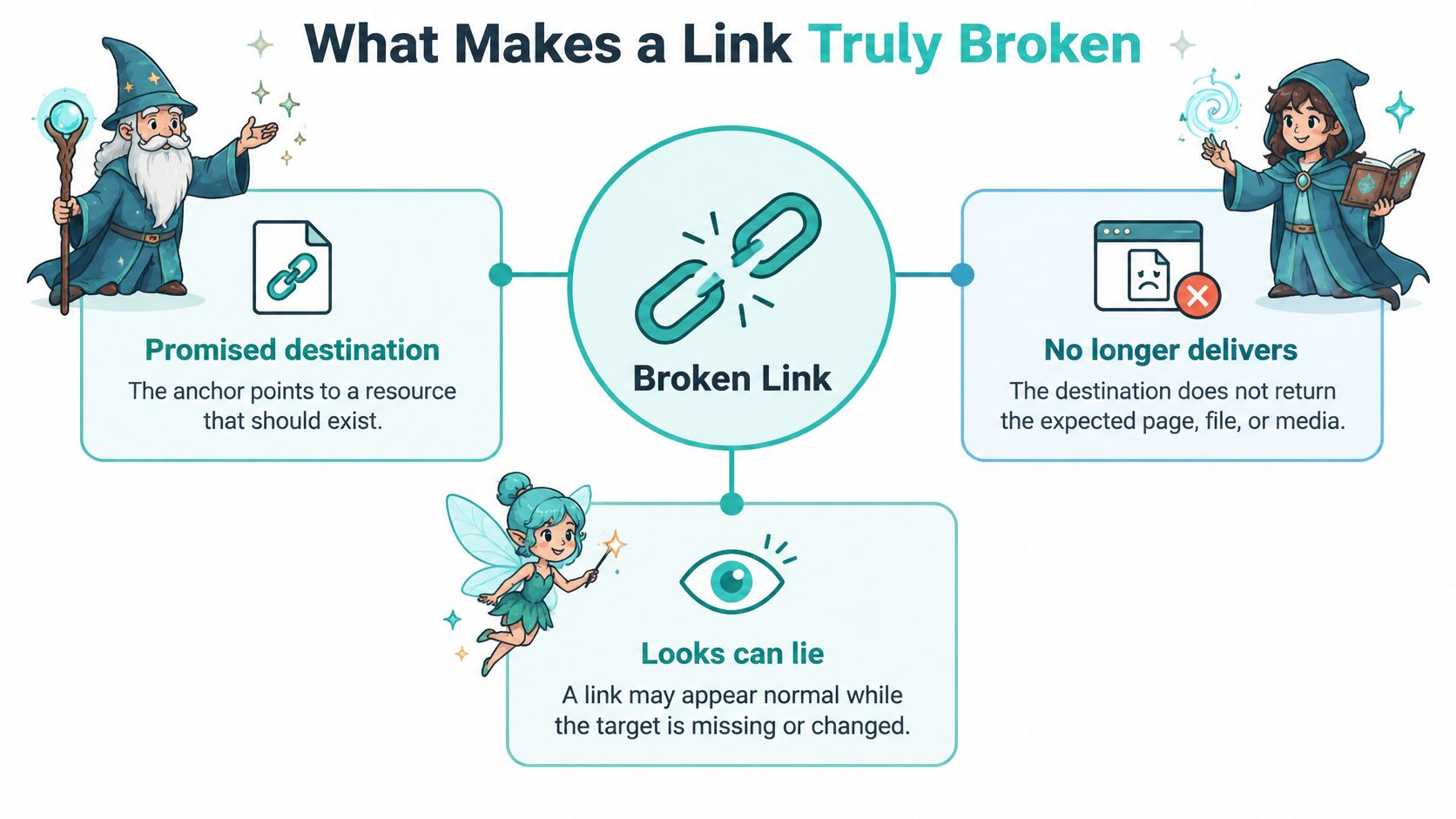
A link is broken when its destination no longer delivers the resource its anchor promised. The page's appearance alone can't confirm whether the link works. A friendly error design may hide a genuine failure, while a page that looks ordinary may return a misleading response to a search crawler.
Start with the HTTP response, the server's answer to a request for a URL. If a page has gone missing, the server should normally return 404 Not Found. For a resource that's been permanently removed, 410 Gone can make that removal explicit.
Read the response, not just the page
Here are miniature examples to say aloud:
- 404 Not Found: “The link points to
/old-pricing, and that page isn't available.” - 410 Gone: “The link points to
/retired-course, and that resource has been permanently removed.” - Soft 404: “The server says
200 OK, but the page body says the resource can't be found.” - Relevant 301 redirect: “The old guide moved to a current guide that answers the same question.”
The third case is a soft 404. The server claims success with 200 OK, but the content is empty or says “page not found.” That mismatch can waste crawl activity: a search engine may treat an error-like URL as if it were a working page instead of recognizing that it offers no useful destination.
A redirect makes sense when a close replacement exists. If /old-guide has been replaced by /updated-guide covering the same subject, a targeted permanent 301 can bring visitors to the right place. Sending every dead URL to the homepage is different. The homepage usually doesn't fulfill the specific intent behind the original link, so that blanket hop can confuse people rather than help them.
Check the final destination: Request the URL, follow any redirects, and inspect the final HTTP status. Don't decide from the page template alone.
That last step matters when a redirect points somewhere unexpected or ends at an error page. The response tells you what the server returned; the content tells you whether the destination satisfies the link's promise. Use both to diagnose the problem, then choose the repair that fits.
Why Links Rot Across the Open Web
Your help article still recommends a supplier's sizing chart. Since you published it, the supplier has renamed its products, moved its files, and retired the old chart. Your article hasn't changed, but its instructions now send customers to a missing destination. A link is a saved address, not a promise that someone will keep the door open.
Age gives those changes more time to accumulate. Pew Research Center's study of disappearing online content found that 25% of webpages collected between 2013 and 2023 were no longer accessible by October 2023. Sometimes one page disappears while the rest of the site remains available. In other cases, an expired domain takes every address beneath it out of reach.
The changes that leave links behind
A site migration can move hundreds of pages while older articles, emails, and bookmarks keep pointing to their former addresses. Campaign cleanups remove landing pages. Documentation teams reorganize guides. Replacing a downloadable file with a newly named version can leave every link to the previous filename stranded.
Some destinations remain online but become unusable for the person following the link. A public resource moves behind a login. A checkout link depends on a session that has expired. A mobile redesign changes a tap target, or a template update removes the accessible name a screen-reader user needs to identify a link. These failures can arise without anyone deleting the destination.
The address survives; the promised task fails.
That distinction matters when assigning repairs. Your team can control its own page moves, file replacements, and interface changes. Another publisher's expired domain or removed research page requires a different response: finding a suitable replacement or revising the passage that depended on it.
Give old links an owner
Build link checks into publishing and site changes, then use a nightly scan to flag new failures for review. Pair those alerts with user tests of important paths, including downloads, login, and checkout, because an automated request cannot prove that a customer can finish a task.
Assign each confirmed failure an owner and record the repair. That small maintenance habit keeps yesterday's useful content from becoming today's locked door.
Broken Link Examples Beyond a Plain 404
A crawler can report that a page responds, while a visitor still can't finish the task. The failures below show why checking only for an error response misses real problems. Each broken link example pairs the visitor's goal with a test that can uncover the failure.
| Failure mode | What the visitor experiences | Clue | User test |
|---|---|---|---|
| Desktop link to a deleted article | A reader follows a source link to learn more, but lands on an error page. | The destination is missing, or the page no longer contains the cited information. | Use keyboard navigation to reach the link, activate it, and confirm the final page answers the promised question. |
| Mobile tap opens the wrong URL | A shopper taps a product detail link but lands on another item or an irrelevant page. | The tap target, link address, or redirect behaves differently on a phone. | Open the page in a phone browser and tap the link directly. Check that the intended destination appears. |
| In-page anchor lands above the heading | A visitor taps “Jump to shipping details” but arrives at the top of the page or the wrong section. | The URL may have a fragment, but the target heading isn't in the expected place. | Navigate to the link with a keyboard and activate it. Confirm the intended heading is visible after the jump. |
| Download returns an HTML error | A learner clicks a PDF or other resource link but receives an error page instead of a file. | The response is a webpage, not the expected downloadable content. | Activate the link, verify that the file opens or downloads, and check the result on the device the audience uses. |
| Public-looking resource requires login | A visitor follows a research or course link and hits a sign-in screen. | The page loads, but the resource is unavailable to an anonymous visitor. | Test the destination while signed out, then compare with access after signing in. Check the link's screen-reader name and context, too. |
| Checkout or upsell link fails mid-flow | A buyer taps a checkout button, follows a redirect, then gets stranded after a session timeout. | The landing page may work alone even though the path fails after earlier steps. | Walk the money path from product selection through checkout and upsell, including the redirect, using a fresh session. |
A crawler-confirmed 200 does not prove that a link works for every audience, device, or permission level. It can't tell you whether the mobile tap target is usable, whether a screen reader describes the link clearly, or whether an anonymous visitor can open a gated resource. Availability, relevance, access, and task completion are separate checks.
Prioritize failures by consequence, not just response code. A dead citation blocks evidence, while a broken checkout can interrupt revenue and a poorly labeled link can create an accessibility barrier. The important question is who gets blocked and what they were trying to do.
How Broken Links Hurt SEO and Journeys
A founder's pricing guide still gets search traffic, but its “Compare plans” link leads to a deleted page. Visitors arrive with a buying question and lose the route to an answer. The guide is like a shop with a working front door and a blocked aisle: arrival alone doesn't mean the journey succeeds.
Search visibility and task completion fail differently
A 404 means the server couldn't find the requested page. Google explains that ordinary 404 responses are normal and don't, by themselves, hurt other valid pages (Google's guidance on 404 errors). If the missing page previously appeared in search, however, it can drop out of those results, taking that entry point with it.
Broken internal links can also cut off discovery routes. If a new product page's only internal link points to an old address, crawlers may miss the intended destination. Other links or a sitemap may still lead them there. Web Mage's guide to crawling and indexing in SEO explains how discovery differs from being included in search results.
A lost route and a site-wide ranking penalty are different problems.
The business cost can hide behind a working page
An article can remain indexed while its evidence becomes harder to check. A missing research PDF leaves readers unable to verify a claim. A login wall can block a prospect who expected a public resource. Neither failure requires the article itself to disappear.
The same gap affects journeys beyond search. A mobile buyer may abandon an unusable checkout link; a screen-reader user may struggle to identify the purchase link at all. These failures can interrupt revenue without producing a 404.
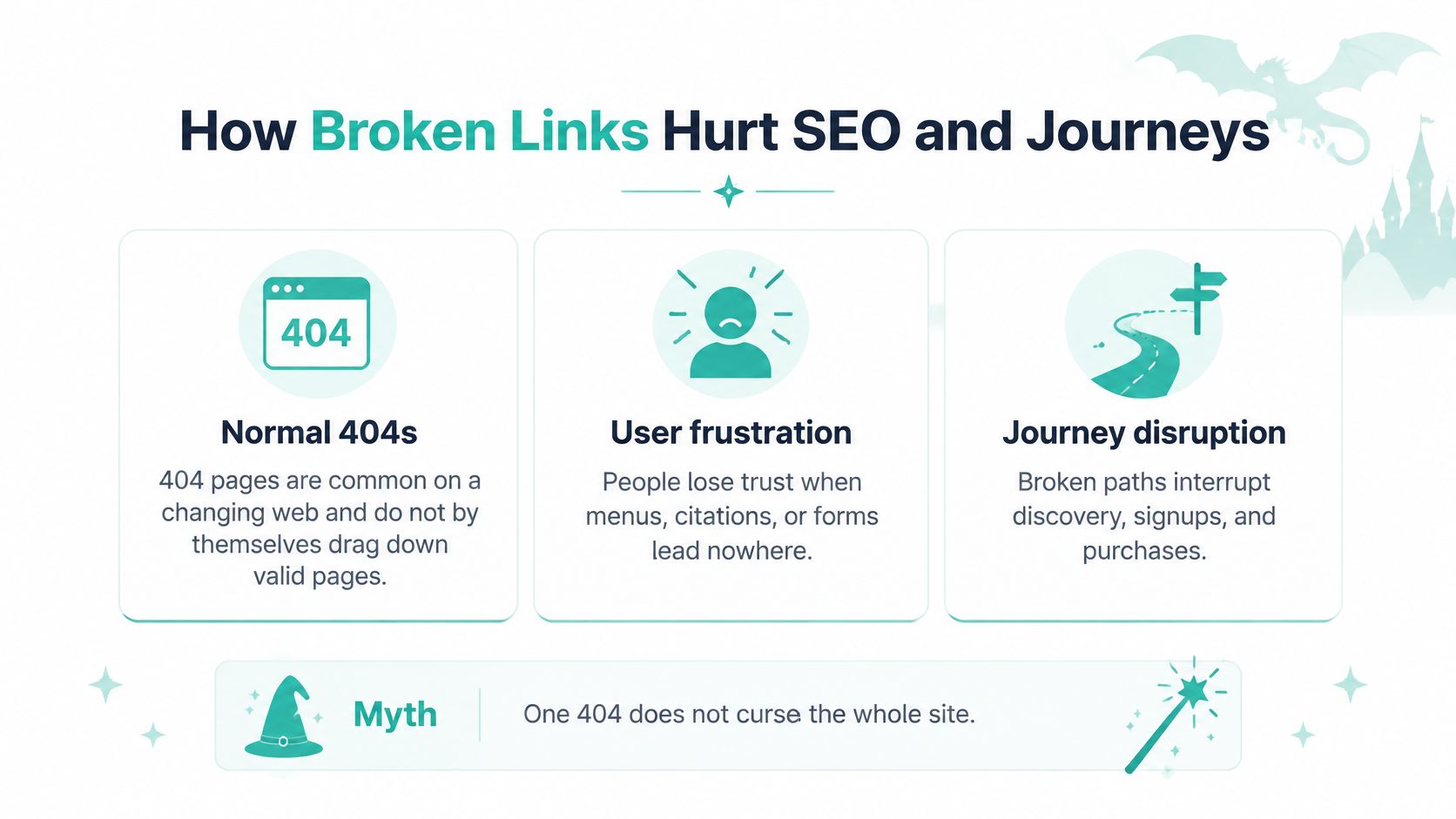
Give each failure a consequence to track: lost discovery, missing evidence, blocked access, or an interrupted purchase. User tests reveal which task fails; a nightly repair queue keeps that finding from becoming a forgotten ticket. After a repair, repeat the affected journey. A green status code is useful, but the visitor still needs to reach the answer, file, or order confirmation.
How to Find and Repair Broken Links
There are three sensible ways to find trouble: check key links by hand, run a link checker, or schedule recurring monitoring. The right choice depends on how large your site is, how many client properties your agency manages, whether a failure blocks a revenue or accessibility path, and whether someone will repeat the check.
Choose a check that gets repeated
Manual pass: Open the site and test the menus, forms, citations, pricing links, and checkout steps people rely on. Follow redirects and confirm the final response, not just the first page that appears. This is also where you can test a screen reader, keyboard navigation, phone browser, or signed-out session.
Link checker: A dedicated tool can scan multiple pages and surface URLs that need attention. The W3C Link Checker recursively checks pages and flags unresolved links and redirects. Search-engine reports can also highlight crawl errors, though they won't replace user tests for permissions, device behavior, or whether a destination is relevant.
Nightly pass: Recurring checks catch changes that a once-in-a-while manual review can miss. Web Mage's SEO Seer is a nightly crawler that rewrites metadata, repairs broken links, and targets additional keywords. It runs alongside a prompt-built site that includes hosting and SSL. That approach suits teams who want recurring maintenance in the same system as the site; a manual pass or a standalone checker may make more sense when a person already owns that routine. Compare the broader options in Web Mage's overview of automated SEO tools.
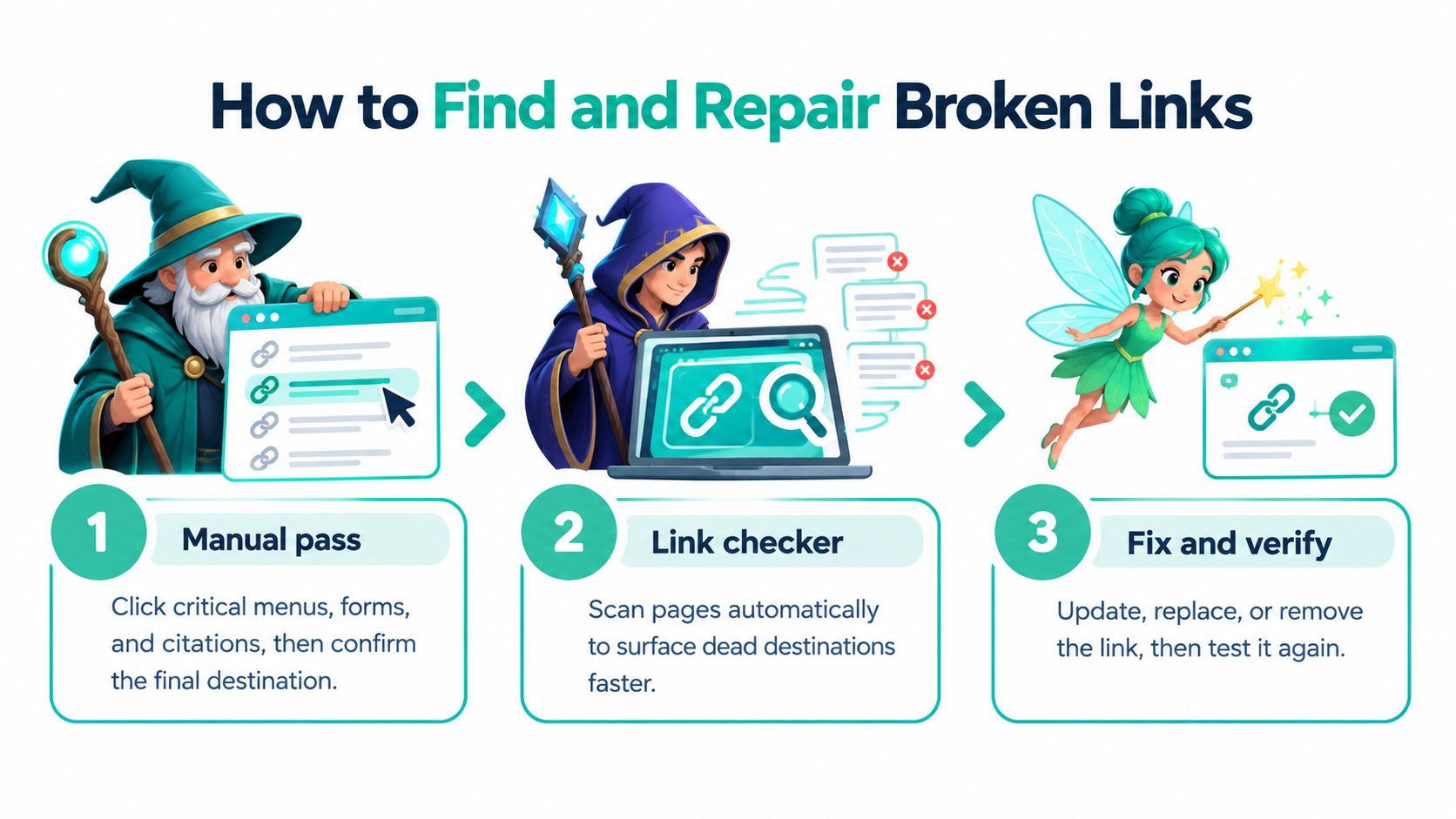
Whatever catches the failure, repair it based on what happened. If the destination still exists, restore or update the link. If the resource is gone, return the honest missing-resource status. Use a 301 only when a close replacement answers the same intent.
A checker can point to a broken URL, but a human test still matters when a link is gated, misdirected on mobile, or part of a multi-step funnel. For a small site, you might start with critical links and a recurring checker. An agency managing multiple properties may prefer an automated pass that reduces reliance on someone remembering to rerun a crawl. Pick the system that fits your workload, then give a person responsibility for acting on the results.
Your Next Spell for Healthier Links
Choose one path on your site to inspect this week. Pick a pricing page, checkout, lead form, or flagship guide, preferably one that helps people reach an offer or important information.
Write down its internal and outbound links. For each one, record the final response after redirects and confirm that the destination provides the promised page, file, or media. Check whether a 200 OK page is an error, and repeat the test on a phone, while signed out, and with a keyboard where those conditions apply.
Then repair the list. Restore links whose destinations still exist. If a resource is gone, remove it or return the appropriate missing-resource response. Redirect only when the new destination serves the same intent. Mark checkout, sign-up, and accessibility-critical paths for more frequent attention than links that are unlikely to block a core task.
Decide which failures should be watched every night rather than checked occasionally. Run the pass yourself, or hand the recurring crawl to an agent that repairs broken links overnight. SEO Seer inside Web Mage is one option for that workflow; details are available in Web Mage's guide to SEO automation software. After its first cycle, test the same path again and confirm that visitors can finish what they came to do.
Web Mage builds websites and funnels from plain-language prompts, then uses SEO Seer to crawl pages nightly, rewrite metadata, and repair broken links. If you want a site with recurring link maintenance built into its workflow, visit Web Mage and explore whether it fits your business.